
Tip & Trick
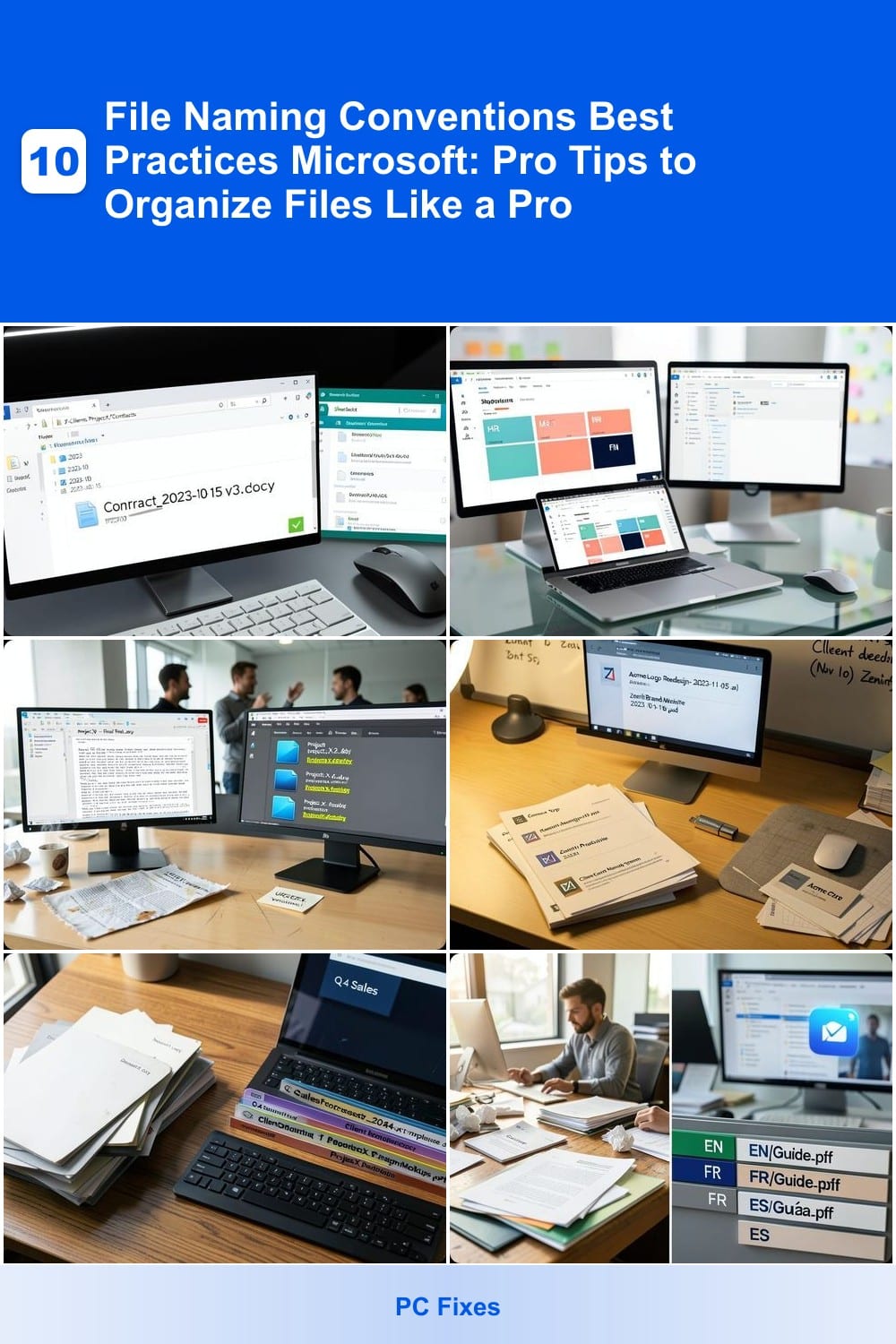
Struggling to keep your Microsoft files organized? Clear, consistent file naming saves time, reduces errors, and makes collaboration seamless. These seven Microsoft file naming best practices will transform your digital workspace from chaotic to professional in minutes.
Date-based naming for project tracking
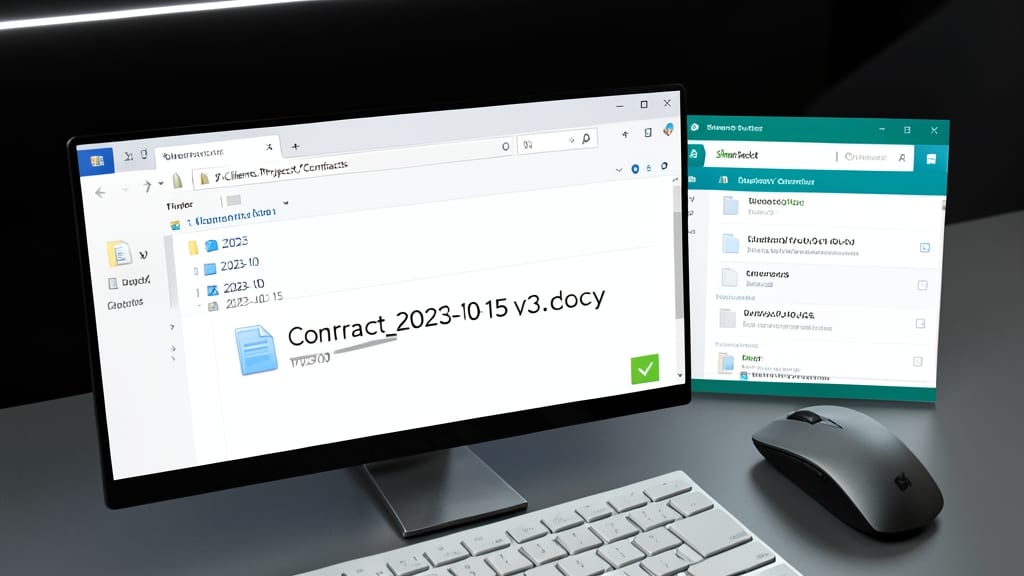
If you’re drowning in version chaos—especially in legal, finance, or audit teams—date-based naming is your lifeline. The YYYY-MM-DD format isn’t just chronological; it’s a game-changer for instant sorting in Windows Explorer, SharePoint, or OneDrive, ensuring files like “Contract2023-10-15v3.docx” appear in perfect order without manual shuffling.
This system works seamlessly with Microsoft’s ecosystem: dates sort alphabetically (so “2023-10-15” comes before “2023-11-01”), and you can append version numbers or project codes (e.g., “Audit2023-09-22final.xlsx”). It’s foolproof for compliance-heavy industries where traceability matters—no more guessing which file is the latest.
Perfect for teams that need audit trails or regulatory clarity, this method cuts down on “Which version is this?” emails. Just stick to the format, and your files will stay organized—no extra tools required. ⚡
Department-specific prefixes for teams
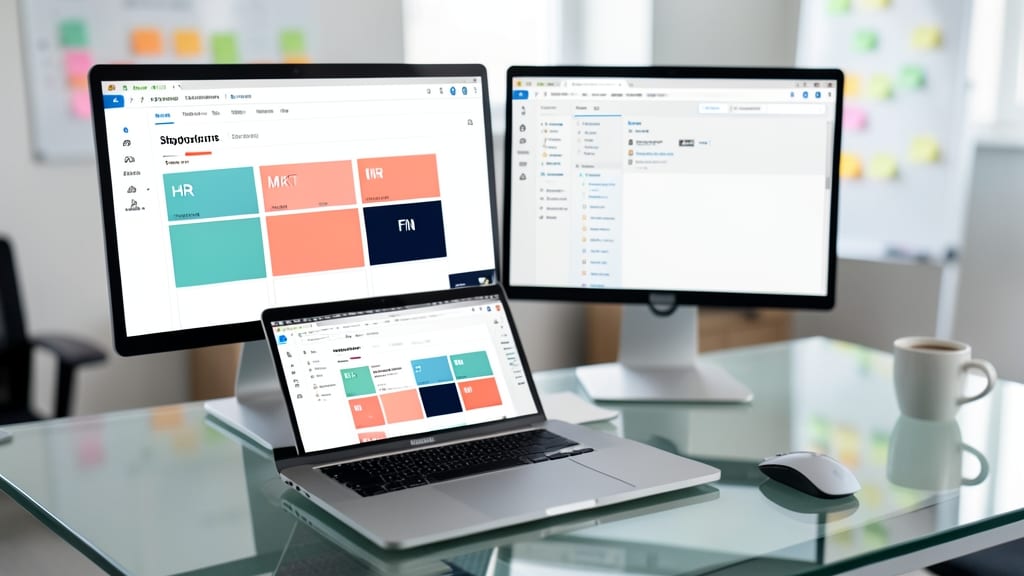
Tired of digging through folders to find the right document? Department-specific prefixes like HR, MKT, or FIN instantly categorize files—no opening required. This system works especially well in SharePoint or OneDrive libraries, where visual sorting saves seconds (or minutes) every time you search.
Use 2-3 character abbreviations (e.g., MKT for Marketing, FIN for Finance) followed by a descriptive name like MKT2023Q3Campaign.docx. This keeps filenames under the 255-character Windows limit while ensuring compatibility with Microsoft’s search and filtering tools. Color-code folders in File Explorer for an extra visual boost!
Perfect for cross-functional teams where HR, Legal, and IT all need quick access. It’s the secret weapon for collaboration-heavy environments where misplaced files mean lost productivity. ✨
Version control using suffix numbers
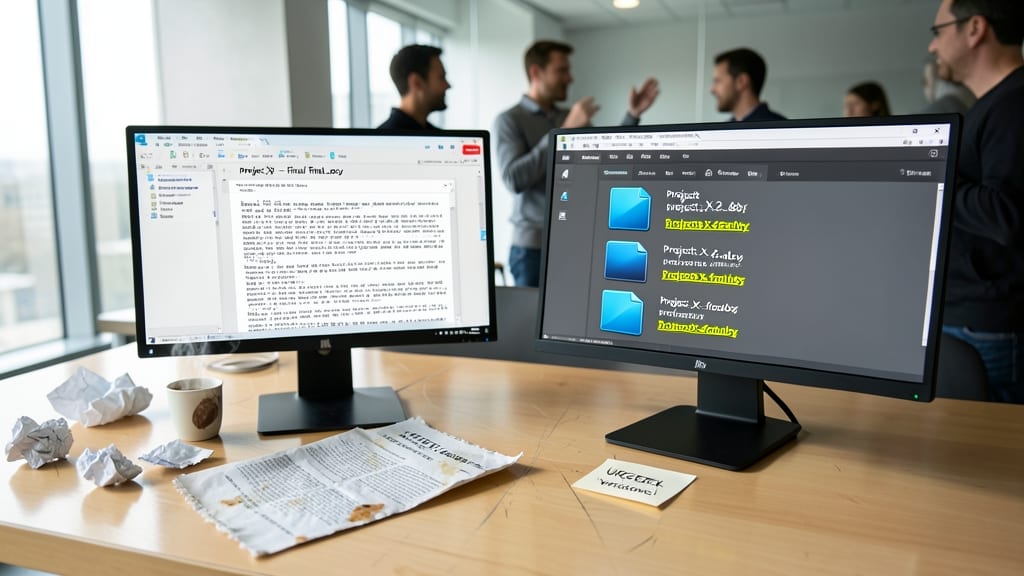
When multiple team members are editing the same document, keeping track of versions becomes a nightmare—unless you use suffix numbers. Instead of relying on vague names like "FinalFinal.docx," this method clearly marks iterations with '-v2', '-final', or '-draft' suffixes, ensuring everyone knows which version is current.
This approach works seamlessly with SharePoint libraries, where version history is automatically tied to the filename. For example, 'Proposalv1.docx' → 'Proposalv2.docx' → 'Proposalfinal.docx' makes it effortless to roll back or reference past edits. Microsoft’s built-in version control in Office apps (like Word and Excel) also syncs with these naming conventions.
Perfect for legal teams, marketing agencies, or any group working on shared documents, this method eliminates confusion and speeds up reviews. ⚡
Client-centric naming for agencies
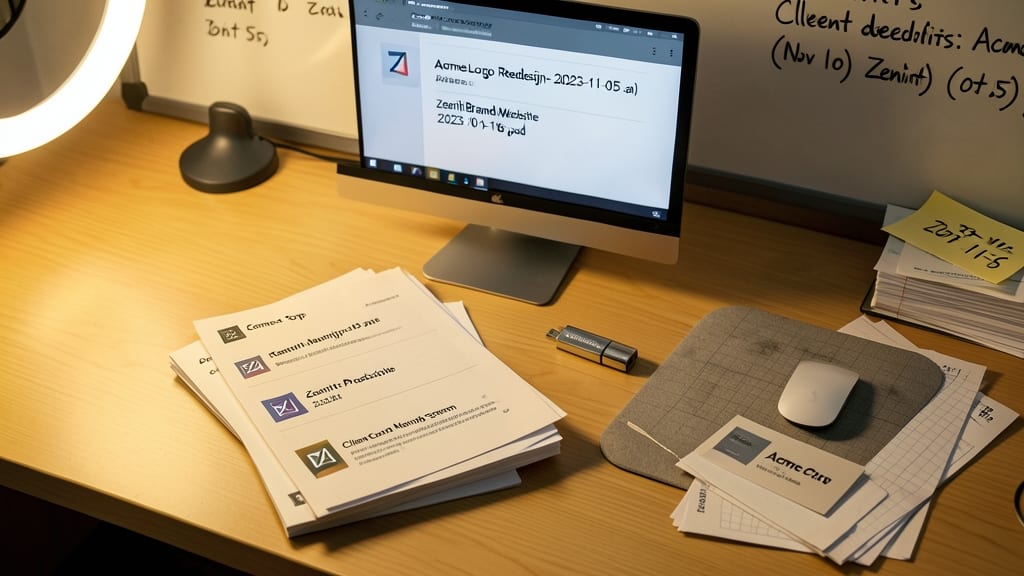
Freelancers and agencies juggling multiple client projects know the nightmare of misplaced files—until now. The Client-Centric Naming system solves this by embedding ClientNameProjectTypeDate directly into filenames (e.g., AcmeLogoRedesign2023-11-05.ai). This structure ensures instant visual sorting by client, project type, and timeline, eliminating the "Where did I save that?" panic.
With this method, you gain three layers of organization in a single filename: the client’s name (e.g., AcmeLogo), the project type (e.g., Redesign), and the date (YYYY-MM-DD format). Microsoft’s built-in sorting recognizes this structure, so files auto-arrange in File Explorer or SharePoint. Plus, it’s client-branded, making it easy to spot deliverables at a glance—no more digging through folders.
Ideal for designers, marketers, and consultants, this system thrives in environments where client confidentiality and project clarity are critical. Implement it today, and watch your file chaos turn into a streamlined workflow. ✨
Keyword-rich names for searchability

Tired of scrolling endlessly through generic filenames like "Document1.docx" or "Notes.pdf"? Keyword-rich naming transforms your file library into a searchable powerhouse—especially when paired with Windows Search and OneDrive indexing.
Embed descriptive keywords directly in filenames (e.g., "Q4SalesReport2023RegionalBreakdown.xlsx") to ensure instant retrieval. Microsoft’s built-in search leverages these terms, while OneDrive’s AI-driven indexing prioritizes files with clear metadata. Avoid vague names like "ProjectX" and instead use underscores or hyphens (e.g., "ClientOnboardingContractv2.pdf") for seamless sorting and filtering.
This system is a game-changer for enterprise teams, researchers, or anyone drowning in documents. With keyword-rich names, you’ll spend less time digging through folders and more time getting work done. ✨
Language-coded files for multilingual teams

Global teams often waste hours searching for the right language version of a document. A simple ISO language code prefix (like EN, FR, or ES) solves this instantly by making language clear at a glance—no more guessing whether "Guia.pdf" is Portuguese or Spanish.
Pair this with Microsoft’s Translator add-in for Word/Excel, and you get seamless translation workflows. The naming convention works across Windows, SharePoint, and OneDrive, ensuring consistency whether files are stored locally or in the cloud. For example, 'ENTermsOfService2024.pdf' and 'FRNoticeLegale_2024.docx' keep translations organized and instantly identifiable.
This system is ideal for multinational corporations, SaaS companies with global support, or any team producing localized content. It’s a small tweak with huge payoffs for clarity and collaboration. ✨
Automated naming with Power Automate
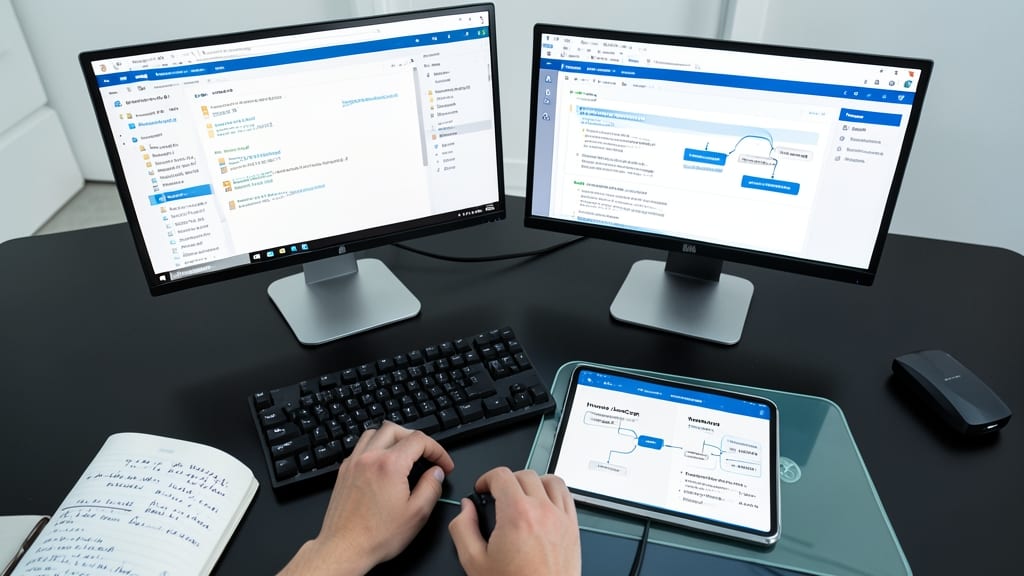
Tired of manually renaming files that follow inconsistent patterns? Power Automate lets you automate file naming based on metadata—no coding required. With a simple flow, you can transform messy filenames like "Invoice123.pdf" into structured ones like "InvoiceAcmeCorp2023-12_Amount500.pdf" using just a few clicks.
This zero-config solution works with OneDrive, SharePoint, and local files, pulling data from properties like creation dates, file types, or custom fields. The built-in rename action in Power Automate Desktop even handles bulk operations, ensuring every file in a folder gets the same consistent treatment. For teams drowning in disorganized files, this is a game-changer.
Perfect for accounting teams, project managers, or anyone processing high volumes of files, Power Automate turns a tedious task into a fully automated process. Just set it up once, and watch your file structure transform effortlessly. ✨