
PowerPoint
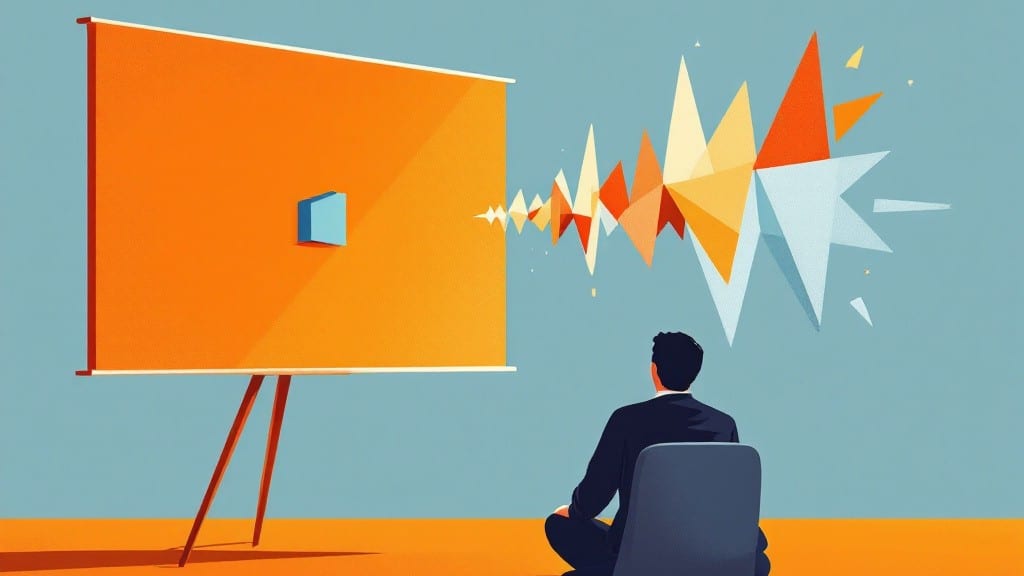
Adding sound effects to PowerPoint can transform a boring presentation into something unforgettable—like the first time I turned my uncle's old IBM slideshow into a multimedia experience back in '98. ✨ The built-in tools make it shockingly simple, whether you're using stock sounds or custom clips.
You'll have your first audio-enhanced slide ready in under five minutes, no fancy software required.
PowerPoint comes with a library of pre-loaded sounds perfect for transitions, emphasis, or background ambiance. To access them, click Insert > Audio > Audio on My PC, then browse the Sound Effects folder in your installation directory.
For custom files, just drag and drop MP3, WAV, or AIFF files directly onto your slides—though I learned the hard way that unsupported formats (like some AAC files) will silently fail.
Here’s the secret sauce: trim your audio clips to match slide timing—nothing kills engagement faster than a 30-second sound effect playing while you're still on the previous slide. Use the Audio Tools tab to adjust playback settings, and always test in Slide Show mode before your audience arrives.
The difference between a forgettable talk and a memorable one often comes down to these small audio touches.
Pro tip: Save your presentation as a PowerPoint Show (.ppsx) if you're worried about compatibility—it forces audio playback automatically. And if your sounds cut off early? Check your file's bitrate; high-quality WAV files work best for crisp results. Now go make your next presentation sing—literally.
📚 In This Guide
- What you need
- Instructions
- Tips and common mistakes
- Wrapping up and next steps
What you need
- ● Microsoft PowerPoint: Ensure you have PowerPoint 2013 or later (Windows or Mac). Free alternatives like blank">Google Slides or blank">LibreOffice Impress may have limited sound effect options.
- ● Sound Effect Files: Built-in sounds: PowerPoint includes a small library of basic effects (e.g., applause, laser, or "ding").
- ○ External files (optional but recommended): MP3, WAV, or AIFF files (preferred for high quality).
- ● File size: Keep sounds under 5MB for smooth playback.
- ● Duration: Short clips (1–10 seconds) work best for transitions or emphasis.
- ● Computer with speakers/headphones: Test audio playback to ensure clarity.
- ● Free sound effect libraries: blank">Zapsplat (royalty-free)
- ● blank">Freesound (user-uploaded)
- ● Audio editing tools: Trim or adjust volume with Audacity (free) if sounds need tweaking.
- ● Backup storage: Save sound files in a dedicated folder for easy access.
Step-by-Step instructions for enhancing presentations with audio cues
Here's how to integrate sound effects seamlessly—no extra software required.
💻 Step 1: Insert Sound Effects From Built-In Library
Open your PowerPoint presentation and navigate to the slide where you want to add audio. Click the Insert tab, then select Audio from the ribbon. Choose Audio on My PC to browse your device for sound files, or select Record Audio if you want to create custom effects.
For built-in effects, click Audio on My PC, then navigate to PowerPoint's default sound library (usually found in C:\Program Files\Microsoft Office\Root\Document Themes 16\Sound Effects on Windows). Select a sound file—common choices include applause.wav, laser.wav, or chime.wav—and click Insert.
You'll see the audio icon appear on your slide. Right-click it and choose Playback to open the formatting pane. Here, you can set the audio to start automatically or on click, and adjust the volume to 50-70% to avoid overwhelming your presentation.
⌨️ Step 2: Sync Audio With Slide Transitions
With the audio icon selected, click the Playback tab in the ribbon. Under Start, choose Automatically if you want the sound to play when the slide appears, or On Click for interactive control. For dramatic effect, set the audio to Loop until stopped if it's background music.
To sync the audio with your slide timing, click the Slide Show tab, then Rehearse Timings. As you advance through your slides, PowerPoint will record timing data. Pause at key moments to let the sound effect play naturally—this ensures the audio enhances, rather than disrupts, your flow.
Here's the thing—test the timing in Slide Show mode before your actual presentation. If the audio cuts off mid-slide, extend the slide's duration by 1-2 seconds in the Transition settings.
💡 Step 3: Advanced Tricks for Professional Results
For more control, right-click the audio icon and select Edit Audio. Here, you can trim the sound file to remove silence at the beginning or end, or apply a fade-in/fade-out effect to soften transitions. PowerPoint includes basic editing tools—no need for external software.
To layer multiple sounds, insert a second audio file and adjust its playback settings to Start: With Previous. This works well for combining a background theme with spotlight sound effects, like a subtle chime when highlighting key data.
I always enable Hide During Show for sound effects unless they're critical to the narrative. This keeps your slide clean while still delivering the audio impact when triggered.
⏰ Step 4: Export and Verify Playback
Before finalizing, click File > Export > Create a Video to test the full presentation with audio. Choose Full HD and ensure Use Recorded Timings and Narrations is checked. This creates a video file where you can verify that all sounds play at the correct moments.
If any audio is missing or distorted, recheck the file paths—PowerPoint sometimes breaks links if the original sound files move. Save your presentation as a .pptx with embedded media to avoid this issue.
For presentations shared digitally, compress the file by right-clicking the audio icon, selecting Compress Media, and choosing Internet and CD Quality. This reduces file size without noticeable audio degradation.
Tips & tricks for perfectly integrated audio in PowerPoint
Between us, these pro-level tips will help you avoid common pitfalls and create presentations that sound as polished as they look.
The File Path Factor: Always save your presentation as a .pptx with embedded media before sharing—this prevents broken audio links when colleagues open your file on different machines. I've seen presentations where sound effects vanished because the original files moved or got deleted. Right-click each audio icon, select Link, and choose Embed to permanently attach the files.
Volume Balance: The 50-70% volume range in Step 1 is your sweet spot—anything louder risks overwhelming your voice or distracting from your message. For background music, I often set it to 30-40% so it enhances without competing. Pro tip: Test with headphones first to catch any distortion that might not be obvious in a quiet office.
Timing Precision: Those 1-2 seconds in Step 2 can make all the difference when syncing audio with transitions. I recommend rehearsing your presentation twice: once to record timings, then again to fine-tune. If a sound effect feels rushed, extend the slide duration by 0.5 seconds increments rather than big jumps—small adjustments prevent awkward timing.
Layering Strategy: When combining sounds in Step 3, I prioritize the background theme at 30% volume and layer spotlight effects at 60% for key moments. For example, a subtle chime at 60% when revealing data works better than a full-volume ding. The secret is creating a sonic hierarchy where important sounds stand out while background elements remain unobtrusive.
Pro Tips for Add Sound Effects To Powerpoint
- Between us, these pro-level tips will help you avoid common pitfalls and create presentations that sound as polished as they look.
- The File Path Factor: Always save your presentation as a .pptx with embedded media before sharing—this prevents broken audio links when colleagues open your file on different machines.
- Volume Balance: The 50-70% volume range in Step 1 is your sweet spot—anything louder risks overwhelming your voice or distracting from your message.
Frequently asked questions
Got questions about adding sound effects to PowerPoint? You’re not alone! Here are some of the most common queries—and their quick fixes—to help you nail those audio details like a pro.
Can I add sound effects to PowerPoint without downloading anything?
PowerPoint comes with a built-in library of sound effects under the Insert tab. Navigate to Audio > Audio on My PC, then browse the "Sound Effects" folder (usually located in C:\Program Files\Microsoft Office\Media or similar). No extra software needed!
How do I sync sound effects with my slides so they play at the right time?
Use the Animations tab to set triggers. Click your sound effect, then choose Trigger > On Click or With Previous to align it with animations or slide transitions. For precise timing, use the Animation Pane to adjust start delays (e.g., 1-second delay for a "whoosh" after an image appears).
What if my sound effect cuts off or doesn’t play?
This usually happens if the audio file is too large or corrupted. Try these fixes:
- Shorten the clip: Trim the sound effect in a free tool like Audacity before inserting it.
- Check file format: Use
.wavor.mp3files—PowerPoint handles these best. - Repair the file: Re-download the sound effect or convert it using CloudConvert.
Can I add sound effects to a PowerPoint presentation for mobile (iPhone/Android)?strong>
Yes! Open your presentation in the PowerPoint mobile app, tap Insert, then Audio. Upload a sound effect from your device’s storage. Note: Mobile apps have fewer built-in effects, so pre-download custom sounds to your phone first.
Are there free websites to find high-quality sound effects for PowerPoint?
Try these royalty-free sources:
- FreeSound (user-uploaded, creative commons)
- ZapSplat (curated, easy to download)
- MyInstants (simple, categorized effects)
Always check licensing terms—some require attribution. Pro tip: Save effects as .mp3 or .wav for seamless PowerPoint integration!
Wrapping up and next steps
Adding sound effects to your PowerPoint presentations is a game-changer—it boosts engagement, enhances storytelling, and makes your content unforgettable! 🎤 Whether you’re using built-in tools, embedding audio files, or syncing effects with transitions, the key is to keep it relevant and professional.
Now that you’ve mastered the basics, it’s time to experiment with creative combinations and elevate your presentations to the next level.
Ready to take the leap? Start by reviewing your presentation’s flow and strategically placing sound effects where they’ll have the most impact. Happy presenting! 🚀