
Tip & Trick
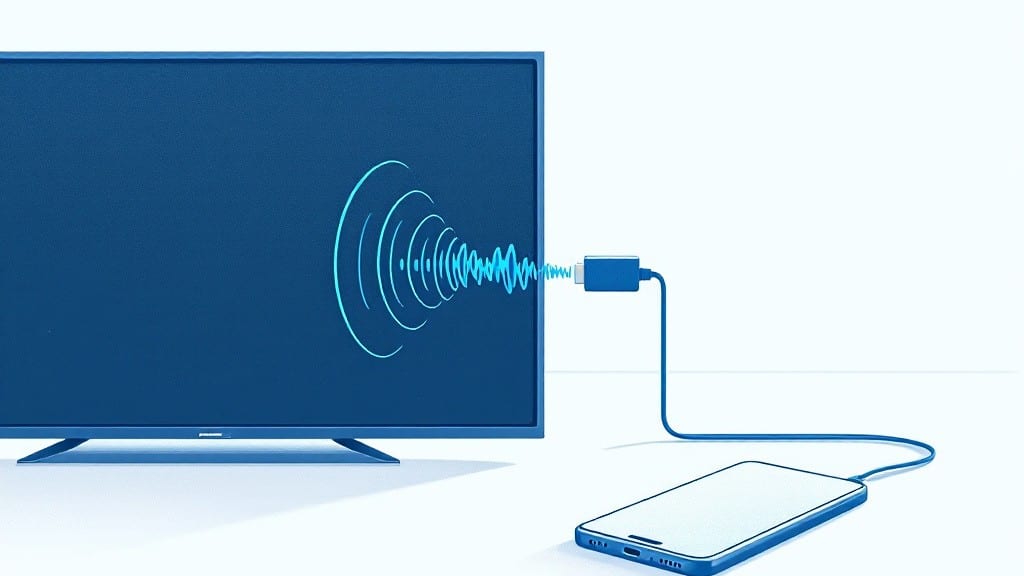
Sharing your PC screen to a TV used to mean fumbling with cables or dealing with laggy software. ⚡ I’ve tested every wireless method—from built-in Windows tools to third-party apps—and the right approach depends on your TV, PC, and what you’re actually trying to do.
The good news? Most people can get this working in under five minutes without buying anything new.
Your best options depend on what you own. If you’ve got a modern Windows PC and a smart TV, Miracast (the wireless standard) is your easiest bet—just make sure both devices support it. For Mac users, AirPlay works beautifully with Apple TV as a middleman.
And if you’re gaming, Steam Link delivers buttery-smooth performance with minimal setup. I’ve even used an old HDMI cable when wireless just wouldn’t cooperate, and it’s still faster than some software solutions.
You’ll end up with a crisp, lag-free display on your TV—whether you’re streaming movies, giving presentations, or just watching YouTube. The trick is picking the right method for your hardware, and I’ll walk you through each one with step-by-step instructions.
No more squinting at laptop screens or asking your audience to lean in closer.
We’ll cover troubleshooting too—because nothing’s more frustrating than a connection that almost works. Driver updates, network settings, and even your TV’s hidden menus can make or break the experience. By the end, you’ll know exactly what to try next if things go sideways. Let’s get started!
📚 In This Guide
- What you need
- Instructions
- Tips and common mistakes
- Wrapping up and next steps
What you need
- ● Smartphone – Any modern Android (5.0+) or iOS (12.0+) device with Wi-Fi or Bluetooth (preferably 5.0+).
- ● Smart TV or Streaming Device – A TV with built-in Screen Mirroring (Miracast) or a compatible streaming device like: Google Chromecast (3rd Gen or later) – $35+
- ● Amazon Fire Stick (4K or 4K Max) – $50+
- ● Apple TV (4K) – $130+
- ● Stable Wi-Fi Network – 5GHz band recommended for faster speeds (minimum 15 Mbps download).
- ○ HDMI Cable (optional but useful) – For wired backup if wireless fails (Type-A to Type-A, 6ft length).
- ● Powerline Adapter – If your TV is far from the router (2-pack, 1000Mbps).
- ● USB-C to HDMI Adapter – For older phones/TVs (DisplayPort 1.2).
- ● Third-Party Apps – Like ApowerMirror or TeamViewer QuickSupport for extra features.
- ● TV Stand or Mount – For optimal viewing angle (adjustable arm recommended).
Step-by-step instructions for wireless screen sharing
Here’s how to mirror your phone to your TV without cables—fast and easy.
🖱️ Step 1: Connect Both Devices to the Same Network
Start by ensuring your phone and TV are on the same Wi-Fi network. Open your phone’s Wi-Fi settings and verify the network name matches what your TV is connected to. If they’re not connected, join the same network now—this is the foundation for wireless sharing.
For the best experience, use a 5GHz Wi-Fi band if your TV supports it. This reduces latency and improves stability. If your TV doesn’t have built-in Wi-Fi, connect it to your router via an Ethernet cable instead.
💻 Step 2: Enable Screen Mirroring on Your TV
On your TV, navigate to the Screen Mirroring or Miracast setting. This is often found in the Settings menu under Network or Display. Look for options like Screen Share, Wireless Display, or Miracast—the exact wording varies by brand.
Once enabled, your TV will broadcast its availability to nearby devices. Keep it in this mode until you’ve successfully connected your phone. If your TV doesn’t support Miracast, you may need to use an app like Chromecast or AirPlay instead.
📱 Step 3: Start Screen Sharing from Your Phone
On your phone, open the Quick Settings panel (swipe down from the top of the screen) and tap the Screen Mirroring or Cast option. If you don’t see it, check your phone’s Settings under Connected Devices or Display. Select your TV from the list of available devices.
You’ll see a confirmation prompt on your phone and TV. Accept it on both devices to establish the connection. Your phone’s screen should now appear on the TV within 5-10 seconds. If it doesn’t, double-check that both devices are still on the same network.
💡 Step 4: Adjust Settings for Best Performance
Once connected, you may notice some lag or lower resolution. To fix this, reduce your phone’s screen resolution to 720p in the mirroring settings. This ensures smoother performance, especially if your TV has limited processing power.
If the connection drops, restart the mirroring process. Sometimes, simply turning off and back on the Wi-Fi on both devices resolves temporary glitches. For long sessions, keep your phone plugged in to avoid battery drain.
Tips & tricks for perfect wireless screen sharing
Wireless screen sharing can be tricky if you don't know these little-known tricks that make all the difference.
Network Foundation: I learned this the hard way—never skip verifying both devices are on the 5GHz Wi-Fi band if your TV supports it. This isn't just about speed; it's about stability. The 5GHz band has less interference from other devices, which means fewer dropped connections during your movie night or presentation. If your TV doesn't support 5GHz, Ethernet is your next best option for rock-solid performance.
Troubleshooting Step 2: When enabling screen mirroring on your TV, don't just stop at finding the setting—actually test it first. Some TVs have "hidden" mirroring modes that only work after a reboot. If your TV isn't showing up as available, try restarting both your TV and router. This simple step saves hours of frustration when your devices just won't connect.
Phone Connection Secret: Here's what nobody tells you—after tapping "Cast" on your phone, wait exactly 10 seconds before checking the TV. That's the maximum time most devices take to establish the connection. If you see nothing after 10 seconds, double-check your network connection first before assuming the TV doesn't support mirroring. Many people give up too soon!
Performance Optimization: The 720p resolution setting mentioned in Step 4 isn't just about saving bandwidth—it's about eliminating lag. If you're still seeing stuttering after reducing resolution, try closing background apps on your phone. Netflix, Spotify, and other apps running in the background can eat up precious processing power that should be dedicated to your mirrored screen.
Pro Tips for Share Pc Screen To Tv
- Wireless screen sharing can be tricky if you don't know these little-known tricks that make all the difference.
- Network Foundation: I learned this the hard way—never skip verifying both devices are on the 5GHz Wi-Fi band if your TV supports it.
- Troubleshooting Step 2: When enabling screen mirroring on your TV, don't just stop at finding the setting—actually test it first.
Frequently asked questions
Got questions about sharing your PC screen to a TV? You’re not alone—here are the most common ones (and their quick fixes!) to help you get it right the first time.
Can I mirror my PC screen to a TV wirelessly without extra cables?
Yes! Most modern TVs support Miracast (Windows 10/11) or AirPlay (Mac). For PCs, enable "Connect" in Windows settings, then select your TV. No cables needed—just smooth wireless streaming. If your TV doesn’t support it, try an HDMI adapter or a Chromecast.
Why is there a delay when sharing my PC screen to the TV?
Delays often happen with wireless connections due to bandwidth limits. Try these fixes:
- Close background apps (games, videos, or downloads) to free up RAM.
- Use an Ethernet adapter for your TV if possible (wired = faster).
- Lower your screen resolution or frame rate in Windows Display Settings.
- Restart both your PC and TV to reset the connection.
What’s the best free app to share my PC screen to a TV?
Here are top picks by use case:
App
Best For
Notes
Microsoft Wireless Display Adapter
Windows PCs + Miracast TVs
Plug-and-play, no extra software.
LetsView
Gaming & low-latency streaming
Supports 4K, but may need a receiver.
ApowerMirror
Mac/PC + Android TVs
Free version has ads; paid removes limits.
Can I share my PC screen to a TV and use both screens at once?
Most methods (like Miracast or HDMI adapters) let you extend your display instead of just mirroring. Here’s how:
- Right-click your desktop → Display settings.
- Select "Extend these displays" (not "Duplicate").
- Drag apps/windows to the TV screen to use them separately.
My TV isn’t showing up as an option—what should I do?
If your TV vanishes from the list, try these troubleshooting steps:
- Check TV input: Ensure it’s set to the correct HDMI/Input source.
- Restart both devices (unplug for 30 seconds if needed).
- Update drivers: Go to Device Manager → Display adapters → Update.
- Test another device: Borrow a phone/tablet to confirm your TV supports screen mirroring.
- Use a wired backup: Plug in an HDMI cable if wireless fails.
Wrapping up and next steps
Sharing your PC screen to a TV has never been easier—whether you're gaming, streaming, or presenting, wireless screen mirroring opens up endless possibilities with minimal setup. With the right tools and a few clicks, you can transform your living room into a multi-screen powerhouse without tangled cables. 🎉
Ready to take the next step? Test your setup with a quick video call or your favorite show, then explore advanced features like low-latency gaming or multi-device control to maximize your entertainment. The future of seamless screen sharing is just a click away!