
PowerPoint
PowerPoint transitions can elevate your presentation from basic to professional. These seven transition effects help create smooth slideshow flow, maintain audience engagement, and emphasize key points without distracting from your content.
Fade Transition for Subtle Professionalism
For corporate presentations where clarity and professionalism take center stage, the Fade transition is the unsung hero of PowerPoint effects. It’s the default choice for executives, analysts, and educators who prioritize content over flashy visuals—because it disappears into the background while keeping focus where it belongs: on your data, not the transition itself.
Available in PowerPoint 2016, 2019, and 365, this transition offers zero visual disruption with its smooth, uniform dissolve. You can adjust the speed (from 0.1s to 5s) to match your pacing, and pair it with sound effects (like a subtle chime) for added polish. Unlike dynamic effects, it works flawlessly on projectors, screens, and mobile devices, ensuring consistency across any presentation setup.
This is the go-to for boardroom decks, financial reports, and academic lectures—anywhere precision matters more than spectacle. Trust it to keep your audience engaged without stealing the spotlight. ✨
Morph Transition for Dynamic Visuals
Want to turn your slides into a visual spectacle without sacrificing clarity? The Morph Transition in PowerPoint lets you seamlessly transform shapes, icons, or even text between slides—creating a fluid, cinematic effect that feels like magic. Unlike static transitions, this one morphs elements directly, making it perfect for showcasing design evolution or product iterations.
Available in PowerPoint 2016 and later, this transition works best with vector-based graphics (like shapes or icons) rather than complex images. You can adjust the speed and direction of the morph, and it pairs well with animations to build layered storytelling. For example, morph a simple wireframe into a polished UI mockup to highlight your design process.
Creative professionals, UX designers, and marketers will love this for its sleek, modern appeal, while educators can use it to illustrate transformations (like chemical reactions or architectural plans). Just ensure your source and target slides have similar structures for the smoothest results. ✨
Push Transition for Directional Emphasis
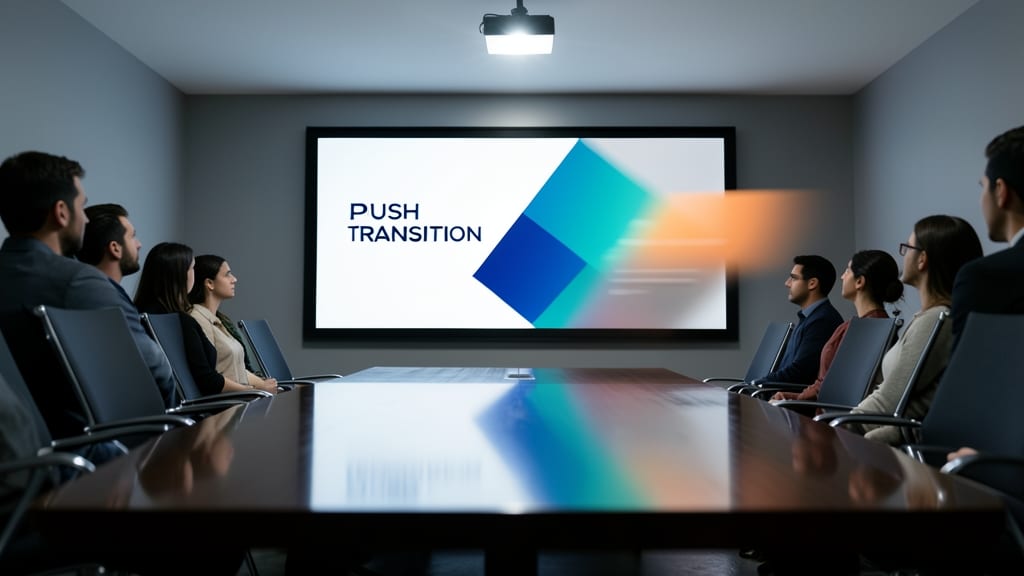
Need to guide your audience through a narrative or process? The Push Transition is your secret weapon—it mimics physical movement, directing attention naturally from one slide to the next like a well-placed arrow in a story.
This effect works by pushing the current slide off-screen in one direction (left, right, up, or down) while the next slide glides into place. The result? A smooth, intentional flow that feels organic, not forced. Unlike fades or morphs, it subtly reinforces progression—ideal for tutorials, case studies, or any presentation where sequence matters.
Perfect for educators, trainers, or anyone breaking down complex topics into digestible steps. Just remember: use it sparingly to avoid overwhelming your audience—think of it as a cinematic pan, not a flashy cut. ✨
Zoom Transition for High-Impact Reveals
Need to make your audience lean in when you unveil a new product, logo, or game-changing idea? The Zoom transition delivers that cinematic "wow" factor with a smooth, accelerating zoom effect that draws eyes directly to your focal point.
Available in PowerPoint 2016, 2019, and 365, this transition lets you control the zoom direction (in/out) and speed for precise impact. Pair it with a black slide background and white text for maximum contrast, or use it to spotlight a single image or title slide—perfect for keynotes where you want to command attention instantly.
Marketers, startup founders, and conference speakers will love this transition for its ability to visually punctuate key moments without overwhelming your message. Just don’t overuse it—save it for your most important reveals! ✨
Slide Transition for Classic Simplicity
When you need a presentation that feels polished yet approachable, the Slide transition delivers unmatched reliability. Unlike flashy effects, it moves content horizontally (or vertically) with a clean, predictable motion—no surprises, just seamless flow that keeps focus where it belongs: on your message.
Available in PowerPoint 2016, 2019, and 365, this transition offers zero distraction with its straightforward movement. Customize speed (0.5s to 10s) or direction (left/right/up/down) to match your style, while the universal compatibility ensures it works flawlessly across devices. For educators or conservative professionals, it’s the safest choice—no risk of overwhelming your audience.
This is the default transition for a reason: professors, trainers, and executives trust it to maintain professionalism without sacrificing clarity. Perfect for lectures, boardroom updates, or any setting where simplicity speaks louder than spectacle. ✨
Wipe Transition for Creative Segmentation
Struggling to keep your audience engaged during a multi-section presentation? The Wipe transition is your secret weapon—it lets you visually segment content with precision, using customizable directions like left, right, up, or down.
Unlike other transitions, this one mimics a physical wipe across the slide, creating a clear break between topics—ideal for chapter transitions or shifting themes. You can even adjust the wipe direction to match your narrative flow, ensuring your audience stays oriented. Works seamlessly in PowerPoint 2016 and later, including the latest 365 versions.
Perfect for educators, trainers, or marketers presenting complex topics—think workshops, tutorials, or sales decks where structure matters. Just don’t overuse it, or you’ll lose the impact. ✨
Fade Smear Transition for Modern Elegance
When you want your presentation to feel like a high-end digital experience without sacrificing professionalism, the Fade Smear Transition delivers. Unlike standard fades, this effect adds a subtle smear blur during the transition, creating a sleek, cinematic feel that’s perfect for modern audiences.
Available in PowerPoint 2016 and later, this transition works seamlessly with custom timing and sound effects, letting you fine-tune the duration and intensity of the smear effect. The result? A polished, almost "premium app" aesthetic that elevates marketing decks, creative pitches, or any presentation where visual sophistication matters.
Creative agencies, product launch teams, and designers will appreciate how this transition subtly enhances visual storytelling without overwhelming the content. It’s the ideal choice when you want to stand out while keeping the focus on your message. ✨